Mini PC Dual Monitor Support: Ports, Cables and Setup
A mini PC can run two monitors when its video outputs and graphics support two displays. Check the port types, resolution limits, and cable connections before you buy or connect screens.
On this page (7 sections)
A mini PC can support two monitors when its graphics and video outputs allow two displays at once. Check the computer's display limits, match its ports to the screens, then connect each monitor with a suitable cable.
Two HDMI ports can make setup simple, but the port count alone doesn't tell you which resolutions the computer can drive together. A mini PC with 2 HDMI ports is a useful starting point if you want a direct connection to two HDMI screens.
How do you check mini PC dual monitor support?
Check the graphics specifications and the video outputs together. The computer must support two active displays, and its ports must provide a connection for each one.
Look for the supported number of displays and the maximum resolution or refresh rate when using two screens. A device may support a higher resolution on one monitor than it can handle across two.
Then compare the port labels on the mini PC and monitors. Common video connections include HDMI, DisplayPort, and USB-C with video support; the right choice depends on the exact devices.
Does having two HDMI ports mean a mini PC supports two monitors?
Two HDMI ports are a helpful sign, but check for explicit dual-display support. Specs should say whether both outputs can work at the same time and what resolution each can handle.
For example, the GMKtec G3S has two HDMI 2.0 ports and is described as supporting two 4K displays at 60 Hz. That makes it a direct fit for a two-screen HDMI setup.
Its HDMI ports are useful if your monitors also accept HDMI. For more options that fit this connection style, see mini PCs with 2 HDMI ports.
What if the mini PC has only one video port?
Look for another supported video output or a dock that explicitly supports two independent displays. The connection options depend on the mini PC's port capabilities, graphics support, and operating system.
A USB-C port only works for a monitor if it carries video. Check the computer's documentation for DisplayPort Alt Mode, Thunderbolt, or another stated display feature before buying an adapter or dock.
Avoid assuming that every USB port can connect a screen. A basic HDMI splitter generally duplicates one picture across two monitors instead of extending the desktop.
Which cables do two monitors need?
Use a separate video cable for each monitor, matched to the ports at both ends. If the mini PC and screen share HDMI, a standard HDMI cable is enough for the connection.
For mixed ports, choose a cable or adapter designed for the specific direction and video standard. For example, a USB-C-to-HDMI adapter needs a USB-C port that supports video output.
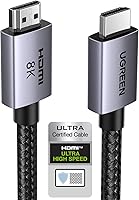
This UGREEN cable is an HDMI 2.1 cable with a 48 Gbps bandwidth rating. The mini PC and display determine the actual resolution and refresh rate, so a high-bandwidth cable won't raise a device's limits.
The Philips 241V8LB monitor includes HDMI and VGA connectivity. Its included components include an HDMI cable, so you may already have what you need for one screen.
Measure the distance from the computer to each screen before choosing cable length. Keep cables away from tight bends and avoid buying adapters until you've checked the exact ports.
How do you connect and set up two monitors?
Connect one monitor to each supported video output, power on both screens, then choose an extended desktop in your operating system. The computer may detect them automatically, but you can adjust the layout and display settings afterward.
- Turn off the mini PC and monitors before connecting cables.
- Connect each monitor to a separate supported video output.
- Turn on the monitors, select the correct input, then start the mini PC.
- Open display settings and choose whether to extend or duplicate the desktop.
- Arrange the screen icons to match their left-to-right position on your desk.
- Set each display to a supported resolution and refresh rate.
If a screen stays blank, check that it is on the right input and that the cable is seated. Try connecting one screen at a time to identify whether a port, cable, or setting is causing the issue.
For a tidy desk, place the main screen directly in front of you and the second beside it. The Philips 241V8LB monitor has a three-sided slim bezel, which can make the gap between neighboring screens less prominent.
Can a mini PC run two 4K monitors?
Some mini PCs can run two 4K monitors, but confirm the combined display limit for the exact model. The resolution, refresh rate, and number of active displays depend on the computer's graphics and ports.
The GMKtec G3S is one example with stated dual 4K at 60 Hz support through two HDMI 2.0 ports. The Beelink Mini S13 is also described as supporting two 4K at 60 Hz displays and has two HDMI ports.
The Beelink Mini S13 includes 16GB of memory and a 500GB SSD, but those storage and memory details don't determine monitor compatibility. Check the video specifications separately before choosing it for a two-screen setup.
If you only need documents, email, and web browsing, a single Full HD screen may be enough. A mini PC for everyday home use can help you compare computers for those broader tasks.
Why is one monitor not detected?
Check the input, cable, port, and display settings in that order. These simple checks can identify many connection problems before you change hardware.
- Confirm that the monitor is powered on and set to the input connected to the mini PC.
- Reseat the cable at both ends, or try another cable known to work.
- Connect the screen directly to the mini PC instead of through an adapter or dock.
- Test each monitor and port one at a time.
- Open display settings and select the option to detect another display.
- Restart the computer after connecting both screens.
If each monitor works alone but not together, the system may have a limit on simultaneous displays or resolution. Review the mini PC's dual-display specifications and try a lower resolution on both screens.
A dock or adapter can add another point of failure. Confirm that it supports two separate displays with your computer and operating system before you rely on it.
How should you arrange two monitors on a small desk?
Place the screen you use most directly in front of you, then put the second screen beside it. Set both at a comfortable viewing height and turn them slightly toward your seat.
A compact mini PC can sit behind a monitor or on the desk, depending on its mounting options and ventilation needs. Keep air vents clear, and route cables so they don't pull on the ports when you move a screen.
Use display settings to match the screen arrangement to your desk. If the second monitor is physically on the left but appears on the right in settings, drag its icon into the correct position.
The guide to connecting a mini PC to a TV covers a related setup if your second screen is a television. For other desk equipment questions, see whether mini PCs have speakers.
What should you check before buying for two screens?
For reliable mini PC dual monitor support, confirm the display count, port types, and resolution limits before choosing cables or monitors. Two HDMI outputs with stated dual-display support offer a straightforward path for two HDMI screens.
Choose the GMKtec G3S or Beelink Mini S13 if their stated dual 4K HDMI support matches your needs. Choose the UGREEN cable when you need an HDMI-to-HDMI connection, and the Philips monitor if a Full HD HDMI or VGA screen suits your desk.
For two independent desktops, connect screens to separate supported outputs and select extend mode. If you need help comparing models, start with our guide to the best mini PCs with 2 HDMI ports.
Frequently asked questions
Can any mini PC support two monitors?
No. The mini PC needs graphics hardware and video outputs that support two displays at the same time.
Check the maker's specifications for the number of supported displays, port types, and resolution limits; two physical ports alone don't confirm the supported setup.
Do both monitors need HDMI?
No. The monitors and mini PC can use matching ports such as HDMI, DisplayPort, or USB-C video, depending on the devices.
If the port types differ, use a compatible cable or adapter and confirm it carries video, since USB-C ports don't all support display output.
Can two monitors run at 4K from a mini PC?
Some mini PCs support two 4K displays, but resolution and refresh rate depend on the computer's graphics, ports, and connection path. Check the specifications for dual display limits, then use cables and monitors that support the chosen resolution and refresh rate.
Will an HDMI splitter give me two screens?
A basic HDMI splitter usually sends the same picture to both screens, so it does not create two independent desktops. For separate workspaces, connect each screen to a distinct supported video output or use a compatible dock that supports separate displays.